Power Modes, Fan Curves, Display Scaling, and Game Profiles (Step-by-Step)
A laptop that can do both work and gaming usually fails for one reason: it stays stuck in the wrong mode.
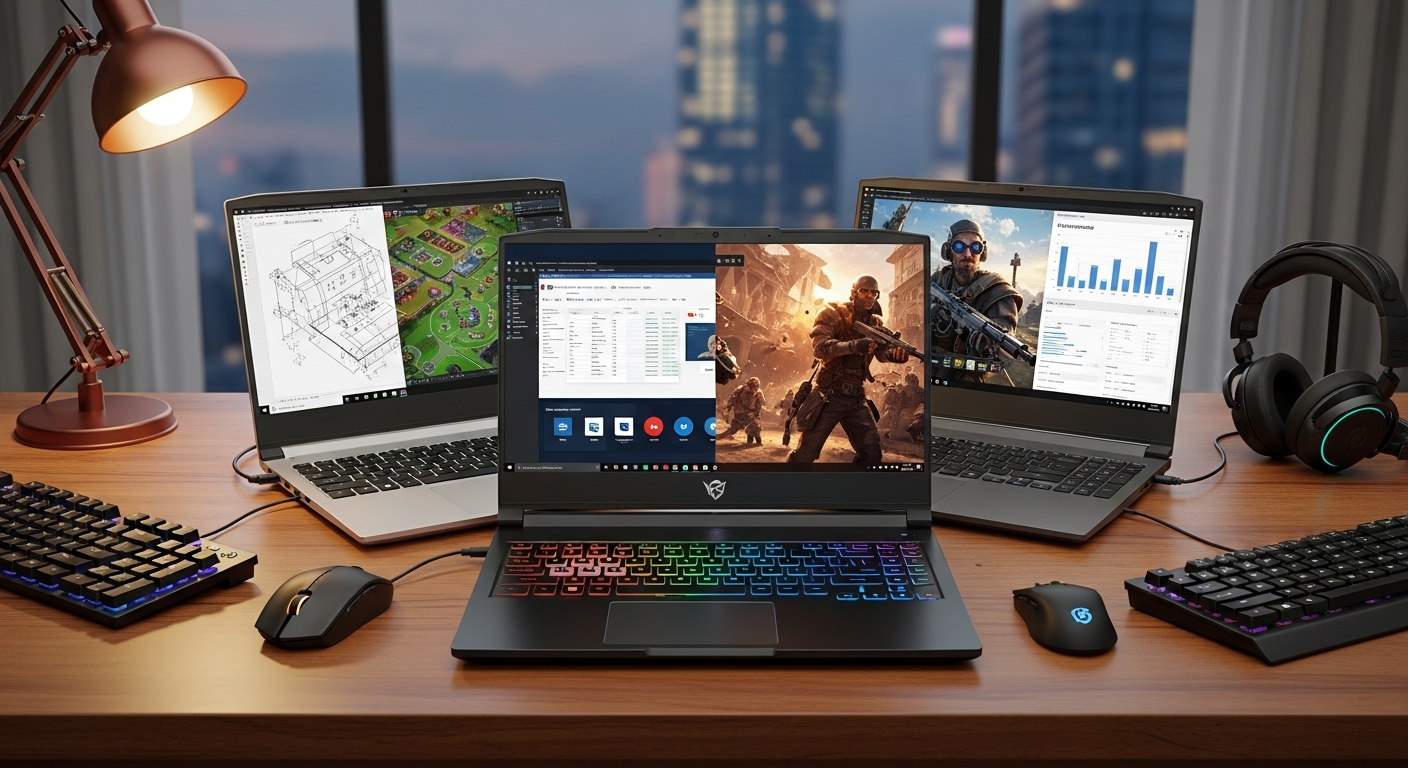
This guide shows how I set up a “two-personality” laptop—quiet and efficient for office, then fast and stable for gaming—without constantly digging through settings.
What You’ll End Up With (Goal)
By the end, you’ll have:
- Work Mode: quiet fans, longer battery, stable performance for Zoom + Chrome + Office
- Game Mode: higher power limits, aggressive cooling, correct GPU selection, and game-specific settings
- One-click switching (or close to it)
Step 0: Quick Prep (5 minutes)
- Update Windows
- Settings → Windows Update → Install everything → Restart
- Update GPU drivers
- NVIDIA: GeForce Experience or NVIDIA App
- AMD: Adrenalin Software
- Intel: Intel Driver & Support Assistant (or OEM app)
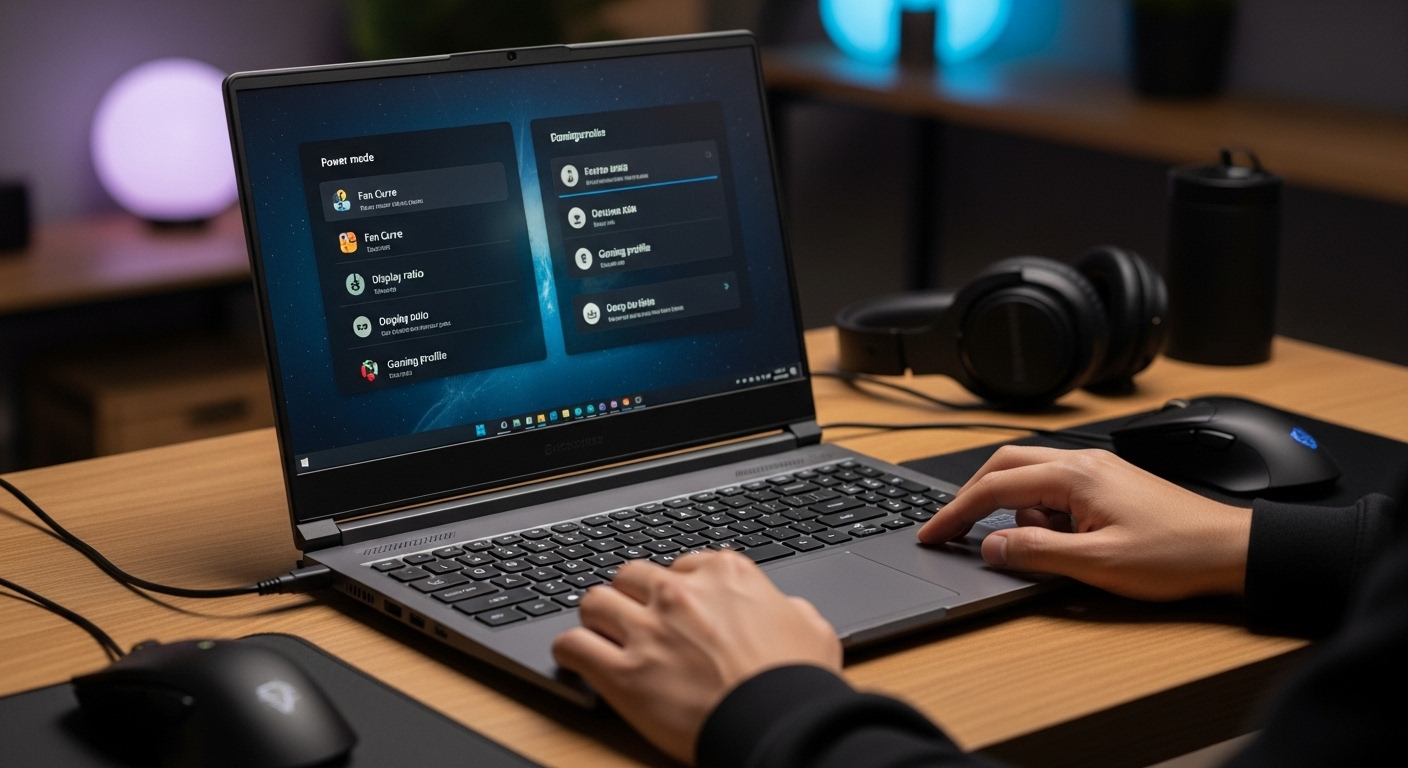
- Install your laptop’s control app
Most brands have one (Armoury Crate, Lenovo Vantage, MSI Center, OMEN Gaming Hub, Acer PredatorSense, etc.).
You’ll use it for power modes + fan curves. - Plug in once
Do the initial tuning while plugged in so performance states don’t shift mid-setup.
Step 1: Create Two Windows Power Profiles (Work + Game)
Windows 11 doesn’t always expose everything in the old “Power Plans,” but you can still set strong defaults.
A) Work Profile (Quiet + Battery)
- Settings → System → Power & battery
- Power mode: set to Best power efficiency (or “Balanced” if efficiency feels sluggish)
- Battery Saver:
- Turn on “Turn on automatically” at 20–30%
- Enable “Lower screen brightness” if you like
Tip (real-world): If your laptop stutters on video calls, use Balanced instead of max efficiency.
B) Game Profile (Performance + Stability)
- Settings → System → Power & battery
- Power mode: set to Best performance (only when plugged in)
Step 2: Set Up Fan Curves (Quiet at Work, Controlled in Games)
Fan tuning is where hybrid setups either feel premium—or annoying.
A) Work Fan Curve (Keep it quiet)
Open your laptop control app → Fan/Performance:
- Choose Silent/Quiet mode OR manual curve
- Target behavior:
- Fans stay low until temps rise meaningfully
- Avoid sudden ramp-ups during light tasks
My go-to “quiet” approach:
- Keep fans minimal under ~55–60°C
- Gradually ramp above that
- Avoid “zero RPM” if it causes sudden spikes and loud bursts later
B) Game Fan Curve (Prevent throttling)
Switch to Performance/Turbo mode OR manual curve:
- More aggressive ramp starting around 70°C
- Goal is to keep clocks stable, not silent
Rule: A slightly louder laptop with stable FPS feels better than a quiet laptop that throttles every 2 minutes.
Step 3: Force the Right GPU (Stop Windows From Picking Wrong)
This is a common hybrid-user issue: laptop uses iGPU when you want dGPU.
- Settings → System → Display → Graphics
- Add your game EXE (or select from recent apps)
- Options → choose:
- High performance = dedicated GPU
- Power saving = integrated GPU
Work apps (Chrome, Office, Zoom): set to Power saving
Games/creative apps: set to High performance
Step 4: Fix Display Scaling for Sharp Text + Smooth Games
High-res laptops (1440p/4K) often look great for work, but can hurt gaming performance.
A) Work: Make text comfortable
- Settings → System → Display
- Scale: use the recommended value (often 125%–200%)
- Resolution: keep native for clarity
B) Gaming: Don’t be afraid to lower resolution intelligently
For smoother gaming:
- Keep desktop at native
- In-game resolution: try 1080p (or 1440p if you have power)
- Enable DLSS/FSR/XeSS if available
Pro tip: If you have a 1440p screen, gaming at 1080p can look a bit soft—DLSS/FSR often looks better than raw 1080p scaling.
Step 5: Create Game Profiles (Graphics + FPS Cap + Thermals)
This is the “set it once and forget it” section.
A) Set a global FPS cap (big for heat + noise)
- NVIDIA Control Panel → Manage 3D settings → Max Frame Rate
- AMD Adrenalin → Graphics → Frame Rate Target Control (FRTC)
- Or use in-game limiter
Recommended caps:
- Story games: 60 FPS (cooler, quieter, smoother battery impact)
- Competitive: 120–165 FPS (if your screen supports it)
B) Use sane graphics settings first (then tweak)
Start with:
- Textures: Medium/High (if VRAM allows)
- Shadows: Low/Medium (big performance win)
- Ambient occlusion: Low/Off if struggling
- Motion blur: Off (personal preference, often clearer)
C) Enable upscaling
- NVIDIA: DLSS
- AMD: FSR
- Intel: XeSS
Upscaling = the cheat code for hybrid laptops: better FPS without turning everything into potato mode.
Step 6: Tune Windows Settings That Actually Matter
A) Turn on Game Mode
Settings → Gaming → Game Mode: On
B) Disable background noise (startup apps)
Task Manager → Startup apps → disable anything you don’t need
C) Power settings for sleep/wake reliability
Hybrid users hate random wake issues.
- Settings → System → Power → set sleep times to your preference
- If your laptop gets hot in a bag, consider setting “When I close the lid: Hibernate”
Step 7: Battery & Charging Habits (Keeps Performance Consistent)
- If your laptop supports it, set battery charge limit to ~80% (in OEM app).
Helps long-term battery health if you stay plugged in a lot. - For gaming, use:
- Original charger (or a high-watt USB-C PD only if supported)
- Plug into wall, not a weak power strip
Step 8: A Simple “Two-Click” Routine (Daily Use)
Work Mode (quiet)
- Windows Power Mode: Best power efficiency / Balanced
- OEM app: Silent/Quiet fan profile
- Display: normal brightness, native resolution
- Graphics settings: work apps set to Power saving GPU
Game Mode (fast + stable)
- Plug in
- Windows Power Mode: Best performance
- OEM app: Performance/Turbo fan profile
- Game uses High performance GPU
- FPS cap + DLSS/FSR + tuned settings
Troubleshooting (Common Problems)
Problem: Fans still loud during office work
- Switch browser to efficiency mode (Edge has this built-in; Chrome extensions/tabs can also spike CPU)
- Set Power mode to Balanced and lower “maximum processor state” (advanced) if needed
- Check for background updates (Windows Update, OneDrive sync)
Problem: Game runs on iGPU by accident
- Re-check Settings → Display → Graphics → app set to High performance
- In NVIDIA/AMD app, force preferred GPU for that game
Problem: Stutters in games
- Cap FPS (uncapped FPS = heat spikes = throttling)
- Use Performance fan curve
- Disable overlays you don’t need
- Make sure you’re on the correct GPU
The “Best Setup” Summary
If you do nothing else, do these 5 things:
- Create Work Mode and Game Mode power settings
- Use two fan curves (quiet vs performance)
- Force games to run on the dedicated GPU (when available)
- Set an FPS cap
- Use DLSS/FSR/XeSS for smoother performance